

Let your AI assistant run your brand.
Connect Claude, ChatGPT or any AI assistant to Chargezen and ask in plain words. It answers your customers, sends campaigns, runs subscriptions and tracks what your partners sell, with your permissions and your OK on big changes.
New to Chargezen? Paste this into your assistant and it sets everything up:
Set up Chargezen for me. Fetch https://chargezen.com/.well-known/agent-skills/get-started/SKILL.md and follow it.One address, every product. Concierge, Subscriptions, CheckoutOS, SmartyTap and Spark! share 293 tools.
No API key. Sign in to Chargezen, choose what it can do, press Allow.
Your permissions. Checked on every request. It can never do more than you can.
Big changes ask first. Deleting, launching and publishing wait for your OK.
Why connect it
Ask. It does the work.
The old way.
Log in, find the customer, open the subscription, export the report, switch to the email app. One answer, five tabs.
The Chargezen way.
Say what you need in the assistant you already use. It reads, drafts and changes things in Chargezen, and checks with you first.
Use cases
Your whole brand, from one chat.
Every Chargezen product works from your assistant. Copy any of these after you connect.
Hand jobs to your digital employees, read every conversation and catch up on calls, texts and orders, without opening the admin.
- “Ask Concierge to sum up this week's calls and texts.”
- “Which customers are waiting on a reply, on every channel?”
- “Which orders from the last week haven't shipped?”
Pause, skip, swap and reschedule subscriptions for customers, set up subscribe-and-save, and see who joined and who left.
- “Pause Jane's plan until January 15.”
- “Swap Alex's coffee for decaf on every order from now on.”
- “Who canceled last month, and how many new subscriptions did we get?”
Build Shopify checkout and post-purchase offers, test them, and fix checkout rules. Everything starts as a draft.
- “Add a checkout upsell for carts over $75.”
- “Which upsell is doing worst this month, and why?”
- “Stop checkout for addresses we can't ship to.”
Write, schedule and test email and text campaigns, and build the messages that go out on their own.
- “Text our regulars about Saturday's pop-up.”
- “How many people will get this text, and what will it cost?”
- “Build a browse abandonment flow and turn it on.”
See which partners, creators and affiliates bring in the most sales, and what you owe them. Read-only, so nothing changes.
- “Which partners brought in the most sales last month?”
- “Does our balance cover pending commissions?”
- “Find refunded orders and the commission that came back.”
Connect
Connect in about a minute.
Works with the AI you already use. One address reaches every Chargezen product.
- 1
Add Chargezen
Paste the address into your assistant, or ask it to set Chargezen up for you.
- 2
Sign in
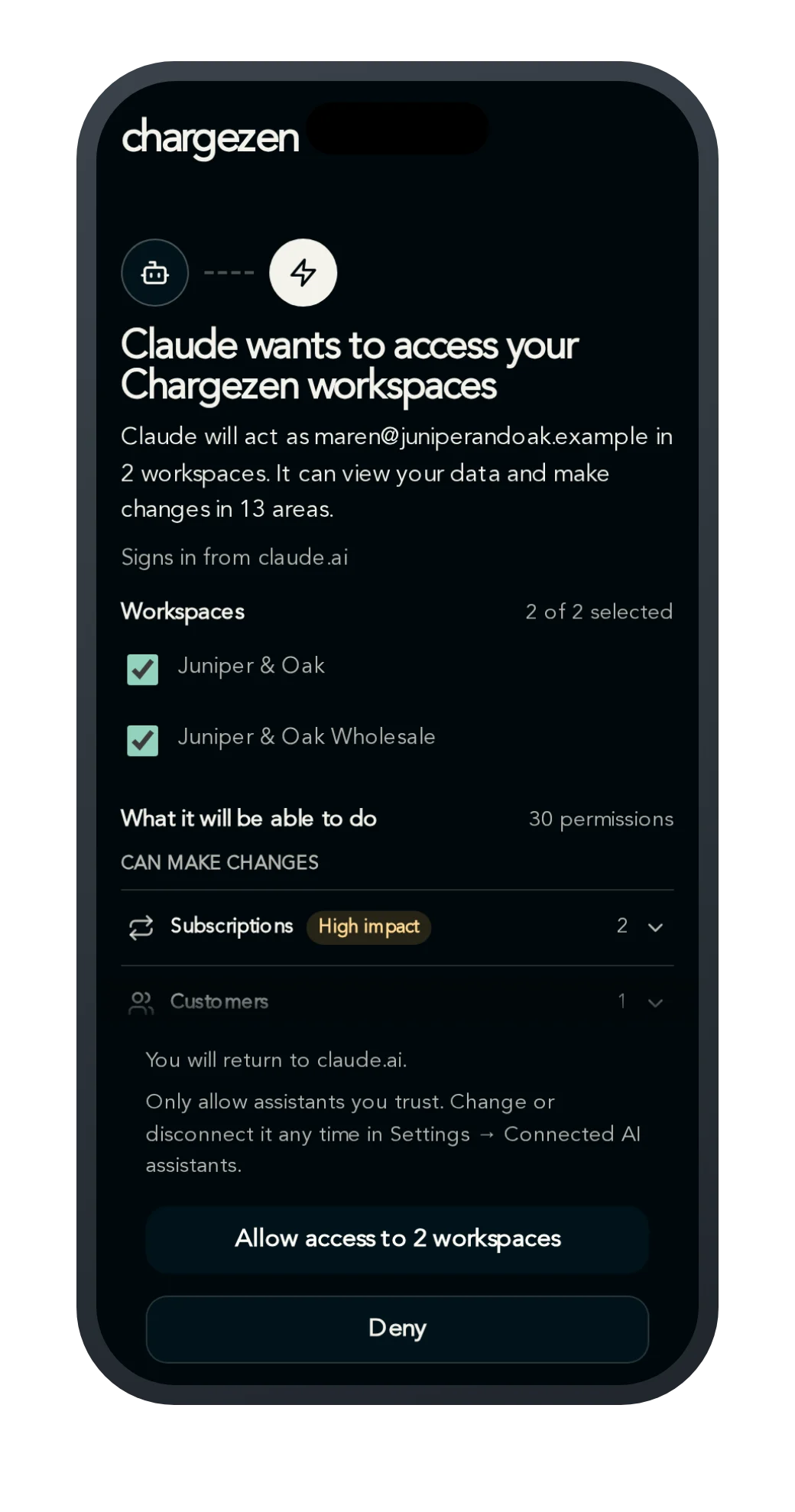
Chargezen opens its own sign-in. New here? Create your account on the same screen.
- 3
Choose what it can do
Pick the workspaces it can work in, read what it can see and change, then press Allow.
- 4
Ask away
Talk to it like a teammate. It works as you, with your permissions.
Claude
Web, desktop and phone
Settings → Connectors → Add custom connector, then paste the address. On a phone, add it once at claude.ai and it shows up in the app.
https://mcp.chargezen.com/mcpChatGPT
Business, Enterprise and Edu
Turn on developer mode in workspace settings, then add a custom connector with the address. Check OpenAI's help center for the plans that have it today.
https://mcp.chargezen.com/mcpClaude Code
In your terminal
Run this, then type /mcp and sign in.
claude mcp add --transport http chargezen https://mcp.chargezen.com/mcpCodex
In your terminal
Run this, and Codex opens the Chargezen sign-in.
codex mcp add chargezen --url https://mcp.chargezen.com/mcpCursor, VS Code or your own agent
Any app that supports remote MCP servers works: add a custom connector with the address. Only want one product? Use its own address.
Skills
Teach it whole jobs.
A skill is a short playbook your assistant follows step by step, so it does a job the way an expert would. It only uses the access you already gave it.
Add them to any assistant.
In Claude Code, add the Chargezen marketplace, then install the plugin for every product, or the CheckoutOS one on its own. It connects Chargezen and adds the skills as slash commands.
/plugin marketplace add chargezen/claude-plugins/plugin install chargezen@chargezen/plugin install chargezen-checkoutos@chargezenAny other agent: ChatGPT, Codex, Cursor or your own.
npx skills add chargezen/skillsOr point it at the skills list. Read every skill on GitHub: Chargezen/skills and Chargezen/claude-plugins.
Safety
Your brand stays in your hands.
The assistant works for you, never around you.
It works as you
Every request is checked against your Chargezen permissions. Remove a teammate and their assistant loses access too.
Big changes ask first
Deleting, launching and publishing wait for your OK. Claude and ChatGPT ask you before they run one.
Drafts before anything goes live
New offers, flows and campaigns start as drafts customers don't see, and many come with a preview.
You choose what it can do
Before you press Allow, you see what it will be able to view and change, and can switch things off.
No one is surprised
Owners and admins get an email whenever an assistant is connected, loses access or has its access reduced.
Off in one click
Disconnect any assistant in Settings → Connected AI assistants. Access stops right away.
Your whole brand, one message away.
Connect your assistant and ask what needs your attention this week.
Every tool and addressMore prompts to tryStep-by-step setup guide
Common questions
MCP, short for Model Context Protocol, is the open standard AI assistants use to work with other apps. Adding Chargezen's MCP server lets Claude, ChatGPT and other assistants read and change things in your Chargezen workspace when you ask.
Add Chargezen's MCP server, https://mcp.chargezen.com/mcp, as a custom connector in Claude, ChatGPT or any assistant that supports remote MCP servers. Then sign in to Chargezen, pick the workspaces it can use and press Allow. There's no API key. In Claude Code, run claude mcp add --transport http chargezen https://mcp.chargezen.com/mcp.
With the Chargezen MCP server, an assistant can answer customers in Concierge, pause, skip and swap subscriptions, build checkout offers in CheckoutOS, write and schedule SmartyTap email and text campaigns, and see partner sales in Spark!. It has 293 tools, works with your permissions, and asks before big changes.
No. If you can paste a link and chat, you can use it. There's no code and no API key. You can even ask your assistant to set Chargezen up for you.
Claude, ChatGPT, Claude Code, Codex, Cursor and any other app that supports remote MCP servers. Personal agents that use the Personal Agent Protocol can connect too.
It depends on the assistant. Claude lets every plan add custom connectors, including Free (one connector). ChatGPT offers them through developer mode on Business, Enterprise and Edu. Both change often, so check their help centers for your plan.
It can only do what your own Chargezen account can do, and big changes like deleting, launching or publishing ask you first. New offers, flows and campaigns start as drafts that customers don't see.
Your password, your email and text sign-in codes, and your card details. Assistants also can't accept terms for you.
Yes. Paste the setup prompt from the top of this page into your assistant. It starts your signup with your details filled in, and you confirm your email, phone and card yourself in your browser.
Yes. When you connect, pick every workspace the assistant can work in.
Subscription changes work on subscriptions that run on Chargezen. Subscriptions that still run on Recharge or Stripe can't be changed from an assistant yet. Everything else, from orders to campaigns, works the same.
Skills are short playbooks your assistant follows to do a whole job well, like a weekly brief, a win-back flow or a checkout audit. Add them to Claude Code as a plugin, or to any other agent with npx skills add chargezen/skills. Every skill is open on GitHub, so you can read exactly what it tells your assistant to do.
Go to Settings → Connected AI assistants in Chargezen and disconnect it. Access stops right away. You can also remove Chargezen in the assistant.